Home › Forum › MultiPlayer Game Hacks & Cheats › CrossFire Hacks & Cheats › CrossFire Tutorials › The Number one guide to optimizing gameplay
The Number one guide to optimizing gameplay
The Number one guide to optimizing gameplay
-Step one-
Download Game accelerator:
|MG| Game Accelerator 9.2 Download
Run the install wizard by pressing 'NEXT' then selecting "I AGREE" in the terms of service.
Once installed,double click on the orange icon in the task tray.

This dialog will come up after double clicking on it:
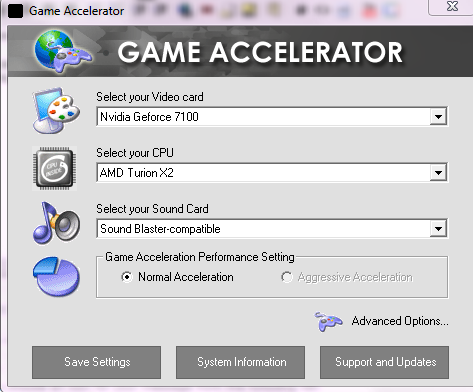
Once this dialog comes up, configure it to your computers specificaitons.
To find out your specifications, run DXDIAG.
To run DXDIAG press the WINDOWS KEY on your keyboard PLUS R at the same time.
This will show up:

Type in DXDIAG in the box then press enter.
This will show your CPU, as needed in game accelerator.

Click on the DISPLAY tab in the same dialog.
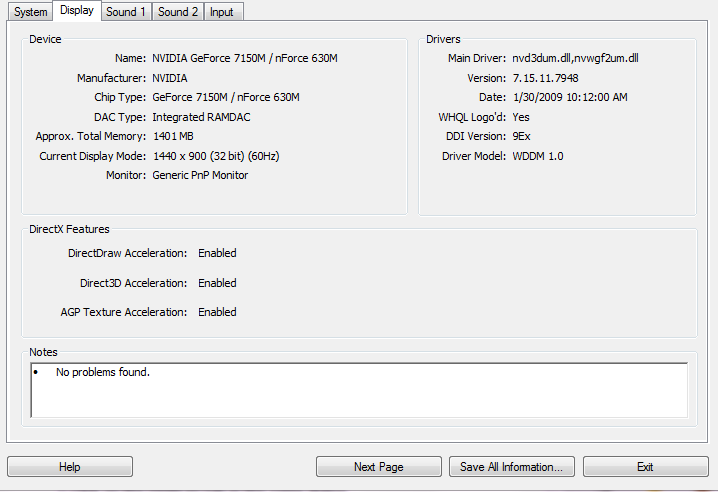
The text after "NAME" will be your video card.
Scroll down in Game Accelerator to locate that video card.
E.G IF your video card is nVidia 8900 GT
Then select the 8000 class if you can't find 8900 specifically.
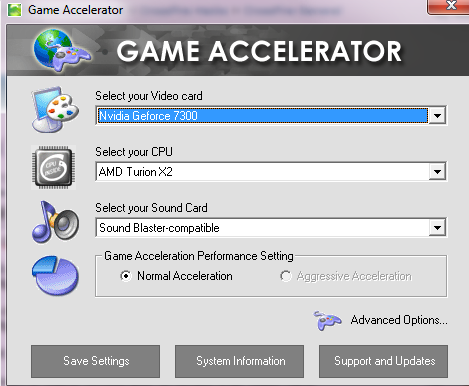
After selecting the proper configuration, press "SAVE SETTINGS"
After doing so, in the task tray RIGHT click on the GameAccelerator icon and click on the context item "HYPER-SPEED GAMING MODE"
After doing so, right click once more and click "DEFRAGMENT MEMORY"
This will take around 10 seconds depending on your computer speed.
This should increase your FPS atleast by 20.
Start playing your game!
-STEP 2-
Games are all about latency, you always have the upper hand if you have a lower ping!
I'll explain ping in a simple form.
Ping is the amount of distance between you in the server and also defines the strength of your connection to the server.
CrossFire's servers are in Canada, quite far away for me but i have 40 ping to it.
Ping is basically TIME, the time data/packets are transfering from the server to you.
Instead of all the other threads on Fixing your TCP ack delay, i will post an alternative for those it did not work for.
Download TCP optimizer!
SG TCP Optimizer - Free software downloads and software reviews - CNET Download.com
Once downloaded, just double-click it to run.
After it is open, change the settings to the configuration listed below;
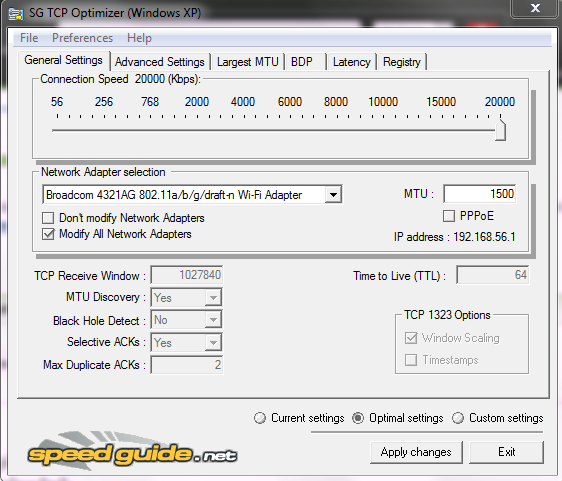
NOTE: The box "Modify all network adapters" MUST BE CHECKED!
After changing it to my configuration, PRESS APPLY SETTINGS.
(Also, all the changes to the registry are backed up on a .SG file in the directory TCPOptimizer.exe is in. Incase anyone is scared of damages, etc.)
This dialog will come up:

PRESS OK
That's it folks!
Now do you wanna see my result of my latency fix?
BEFORE:

AFTER:

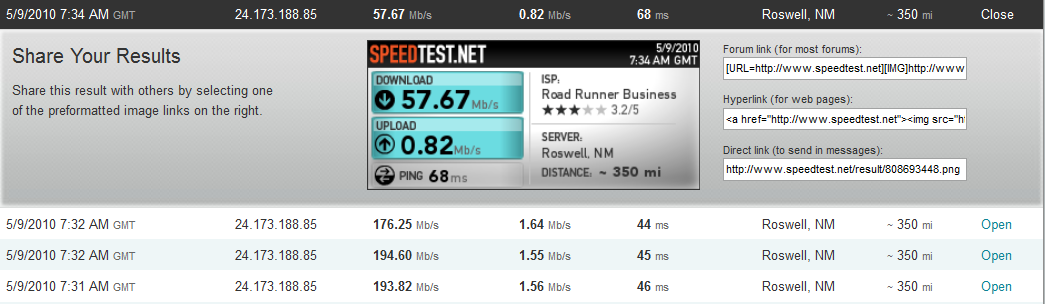
(I rolled back the settings that TCP optimizer applied, and i got 57MB/s, i applied them again and i got 194MB/s) .. (That's for those people who are noticing the times on the speedtests)
For those who disbelieve this worked for me, here is a screenshot of the results on SpeedTest.net
If you liked my guide, request it stickied and press thanks!
Enjoy your game people!
Download Game accelerator:
|MG| Game Accelerator 9.2 Download
Run the install wizard by pressing 'NEXT' then selecting "I AGREE" in the terms of service.
Once installed,double click on the orange icon in the task tray.
This dialog will come up after double clicking on it:
Once this dialog comes up, configure it to your computers specificaitons.
To find out your specifications, run DXDIAG.
To run DXDIAG press the WINDOWS KEY on your keyboard PLUS R at the same time.
This will show up:
Type in DXDIAG in the box then press enter.
This will show your CPU, as needed in game accelerator.
Click on the DISPLAY tab in the same dialog.
The text after "NAME" will be your video card.
Scroll down in Game Accelerator to locate that video card.
E.G IF your video card is nVidia 8900 GT
Then select the 8000 class if you can't find 8900 specifically.
After selecting the proper configuration, press "SAVE SETTINGS"
After doing so, in the task tray RIGHT click on the GameAccelerator icon and click on the context item "HYPER-SPEED GAMING MODE"
After doing so, right click once more and click "DEFRAGMENT MEMORY"
This will take around 10 seconds depending on your computer speed.
This should increase your FPS atleast by 20.
Start playing your game!
-STEP 2-
Games are all about latency, you always have the upper hand if you have a lower ping!
I'll explain ping in a simple form.
Ping is the amount of distance between you in the server and also defines the strength of your connection to the server.
CrossFire's servers are in Canada, quite far away for me but i have 40 ping to it.
Ping is basically TIME, the time data/packets are transfering from the server to you.
Instead of all the other threads on Fixing your TCP ack delay, i will post an alternative for those it did not work for.
Download TCP optimizer!
SG TCP Optimizer - Free software downloads and software reviews - CNET Download.com
Once downloaded, just double-click it to run.
After it is open, change the settings to the configuration listed below;
NOTE: The box "Modify all network adapters" MUST BE CHECKED!
After changing it to my configuration, PRESS APPLY SETTINGS.
(Also, all the changes to the registry are backed up on a .SG file in the directory TCPOptimizer.exe is in. Incase anyone is scared of damages, etc.)
This dialog will come up:
PRESS OK
That's it folks!
Now do you wanna see my result of my latency fix?
BEFORE:
AFTER:
(I rolled back the settings that TCP optimizer applied, and i got 57MB/s, i applied them again and i got 194MB/s) .. (That's for those people who are noticing the times on the speedtests)
For those who disbelieve this worked for me, here is a screenshot of the results on SpeedTest.net
If you liked my guide, request it stickied and press thanks!
Enjoy your game people!
Similar Threads
- 109Last post
- 8Last post
- 13Last post
 Originally Posted by lakshay{Banned}


